You don't have to run it alone
Most clubs are run by more than one person. The Crew screen lets you invite team members so they can help create campaigns, manage events, and keep things moving — without sharing a single login. Each person gets their own account tied to your club.
This guide covers sending invitations, what crew members can and can't do, and how to manage or remove people over time.
Open the Crew screen
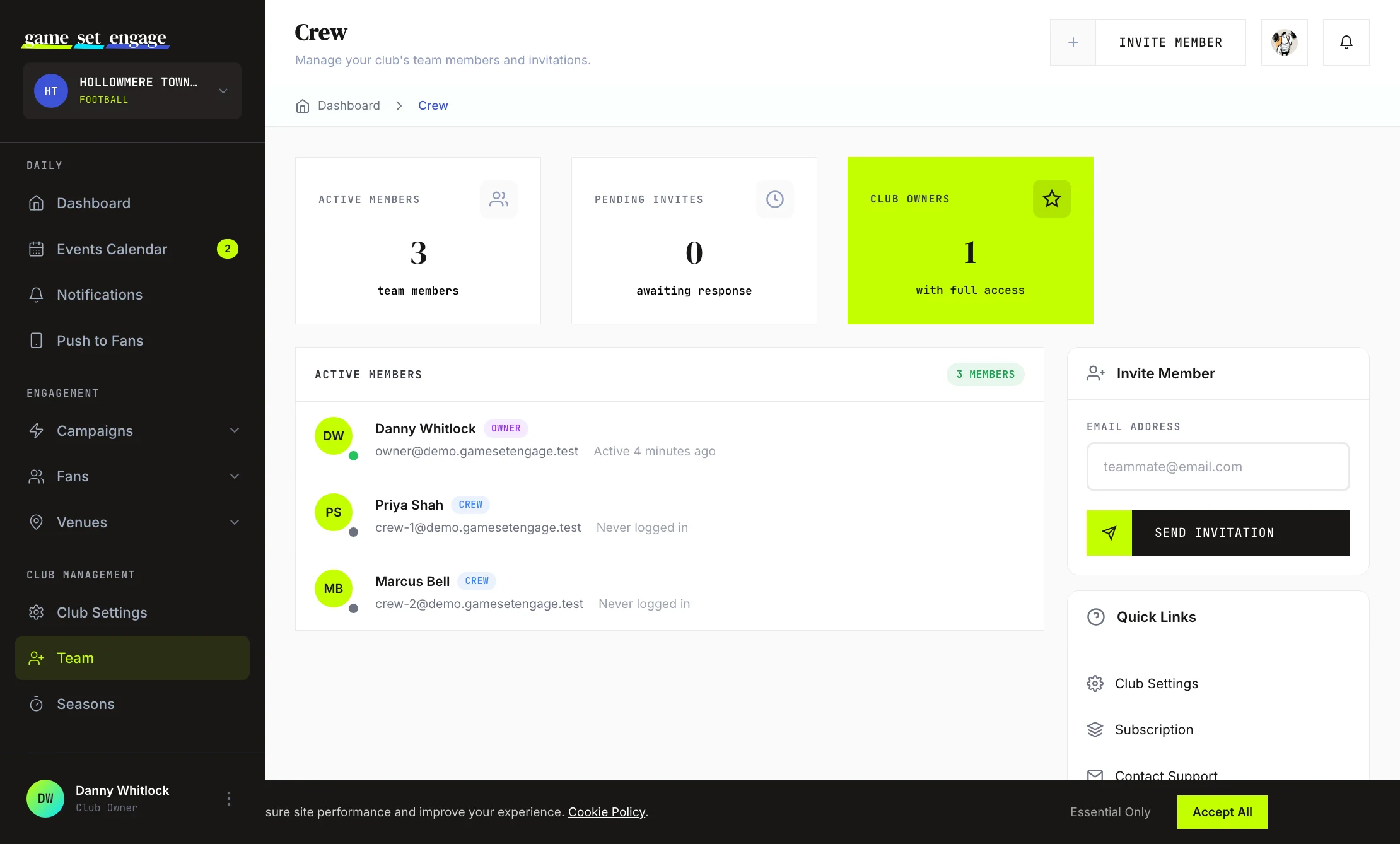
From your dashboard, go to Club Management → Crew. The page is split into a few clear sections:
- Stat cards at the top: active members, pending invites, and club owners
- Active Members — everyone currently on your team
- Pending Invitations — invites you've sent that haven't been accepted yet
- An Invite Member panel in the sidebar
Invite a crew member
Inviting someone takes one field: their email address.
- In the Invite Member panel, enter the person's email address
- Click Send Invitation
- They receive an email with a link to join your club
That's it. The invitation appears in your Pending Invitations list straight away, and the person joins as a crew member once they accept and set up their account.
Tip: Use the email the person actually checks. The invite link is how they get into your club, so send it somewhere they'll see it.
What crew members can do vs the owner
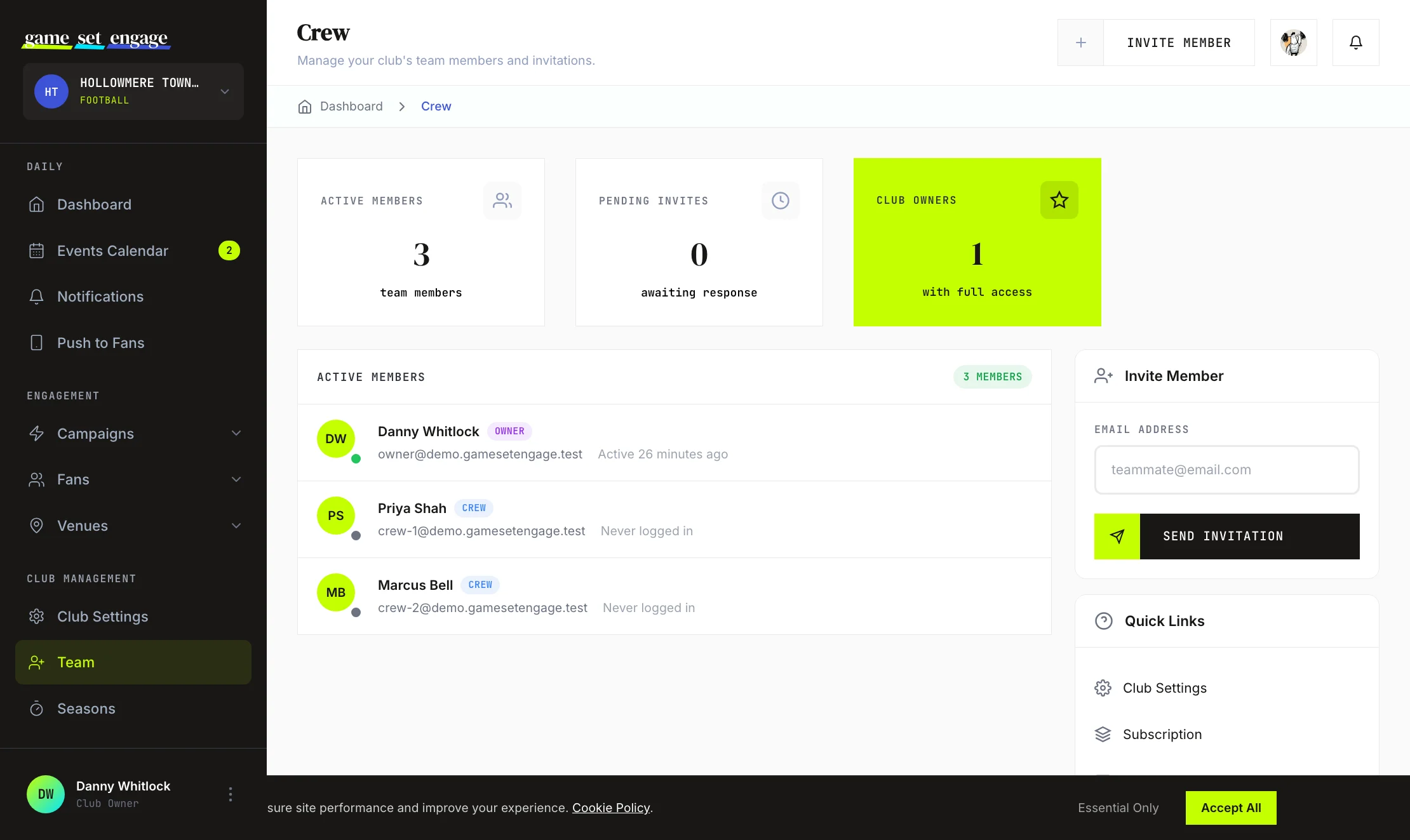
There are two roles on a club team: owner and crew member.
| Capability | Owner | Crew member |
|---|---|---|
| Create, publish and edit campaigns | Yes | Yes |
| Switch campaigns on or off, archive or delete them | Yes | No |
| Resolve predictions (awards points) | Yes | No |
| Manage events | Yes | Yes |
| Approve, decline, end or block venue partnerships | Yes | Yes |
| View fan and campaign analytics | Yes | Yes |
| Edit club settings and profile | Yes | No |
| Invite, remove, and promote team members | Yes | No |
| Manage plan and billing | Yes | No |
| Transfer club ownership | Yes | No |
In short, crew members handle the day-to-day: they create, publish and edit campaigns and manage events. Owner-only controls cover switching campaigns on or off, archiving or deleting them, club settings, billing and the team itself, so only an owner can invite, remove or promote people.
Manage pending invitations
An invitation stays in Pending Invitations until the person accepts it. Each entry shows the email it went to and when it was sent.
If you sent an invite to the wrong address or someone no longer needs to join, click Cancel next to the invitation. You'll be asked to confirm, and once cancelled the link no longer works.
Promote a crew member to owner
If someone else is taking over the club, you can make a crew member the owner. Each club has one owner at a time.
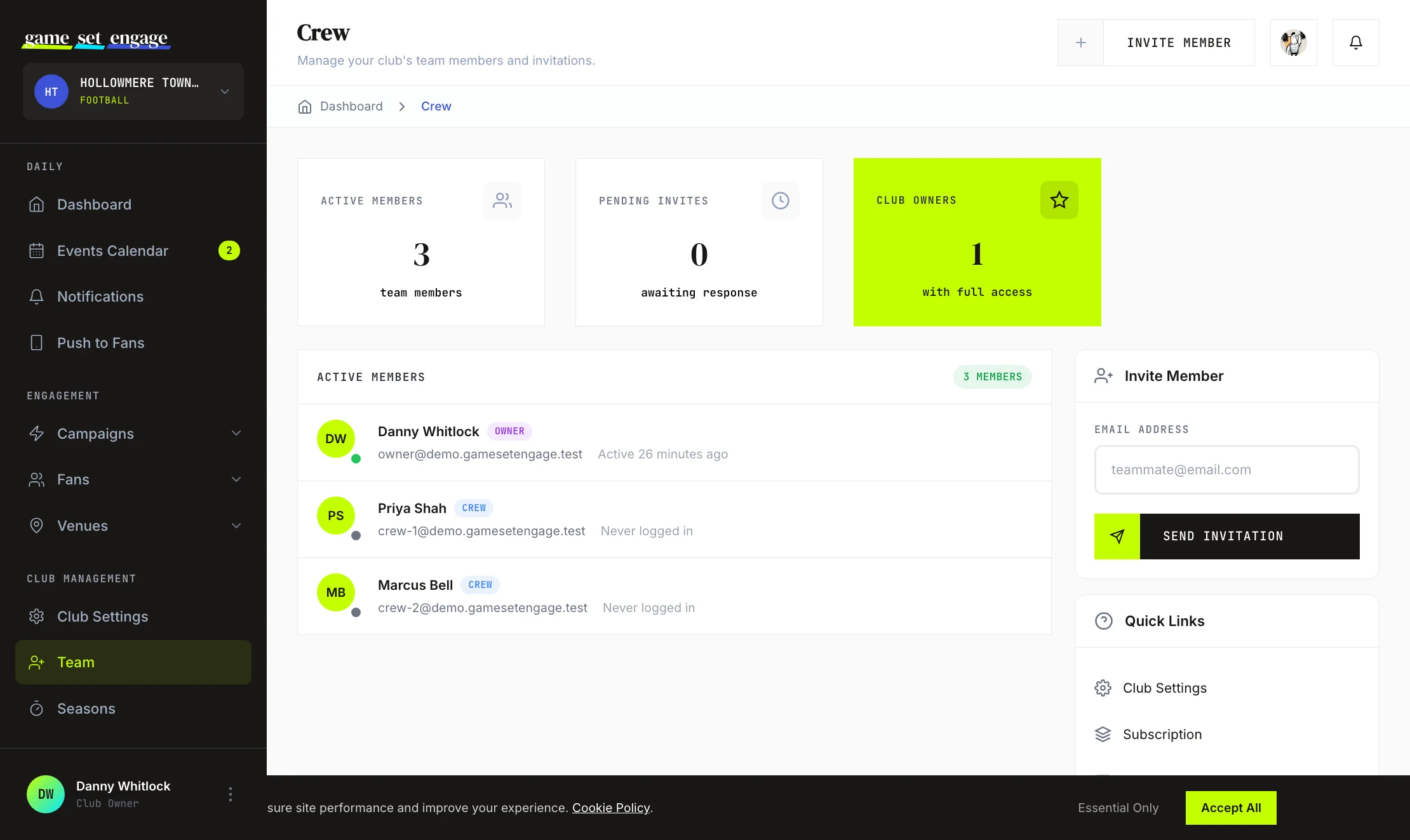
Next to the member, click Make Owner. You'll see what changes and be asked for your password. Confirming does three things:
- It makes that person the club owner
- It moves you to crew member
- It gives them club settings, billing and the crew
You can't undo this yourself. Only the new owner can hand the club back, so pick someone you trust to run it.
The club's plan keeps running on the card on file until the new owner changes it under Billing. If that's your card, you might want to swap it out before you hand over.
Tip: You stay on the team as a crew member, so you can still create, publish and edit campaigns and manage events.
Remove a crew member
To take someone off your team, click Remove next to their name and confirm. Removing a crew member takes away their access to your club and returns their account to a regular fan role.
What's next?
Now that your team is set up, here's where to go next:
- Club settings and profile — keep your club details current
- Creating your first campaign — put your crew to work
- Events calendar and team notes — plan fixtures together
- Seasons explained — organise the year ahead